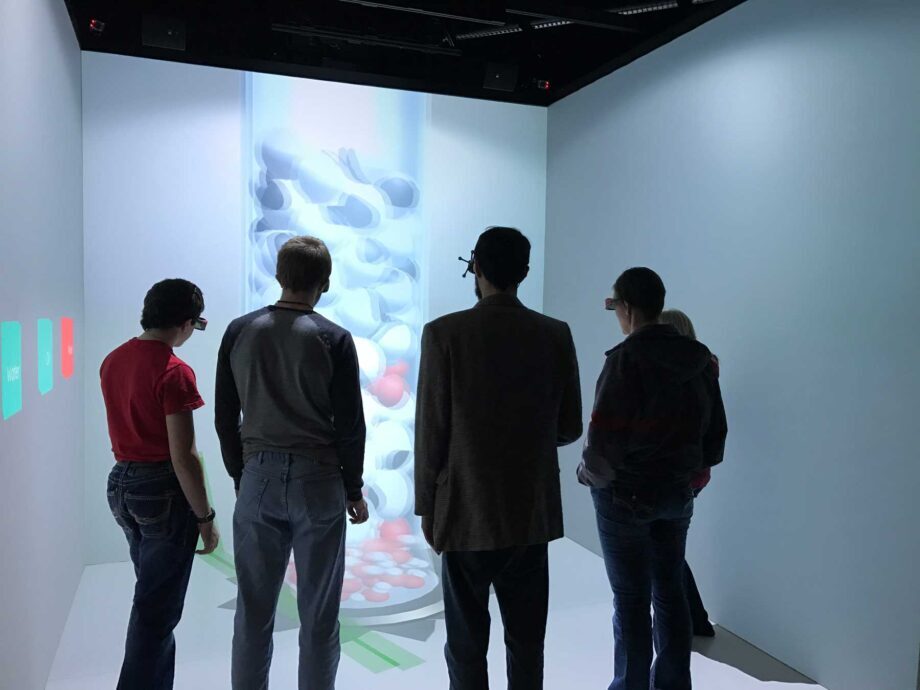
Enable real-time digital prototyping in virtual reality without time intensive file conversions
Enable ultra-high resolution display of GIS data with intuitive navigation
Enable immersive and interactive design reviews to speed time to market
Explore data faster with more detail, make better decisions and reduce physical prototyping costs. Mechdyne's Conduit software enables CAD, GIS and Design/Styling desktop applications to operate in PC cluster-based virtual environments and tiled high-resolution displays. Conduit is compatible with these applications and more:
Conduit is easily configured for a variety of computing and display configurations. It can be integrated with existing digital prototyping and visualization environments or delivered as part of a turn-key solution, including a Mechdyne display solution or PC cluster.
Conduit lets users move instantly from the desktop to a virtual or high resolution digital prototyping environment with no data conversion and no resolution scaling limits. Without any changes to the desktop application, Conduit provides the following capabilities:
Stereoscopic viewing for true depth perception and more insightful digital prototype reviews
Real-time changes in viewing perspective as the user moves within a virtual environment
Enhanced resolution output using cluster-based, multi-projector, tiled displays
Why do This?
Mechdyne's business is immersive environments and we wish to enable as many applications as possible. Using Conduit, we have made several popular desktop applications VR-aware, including:
Conduit intercepts OpenGL calls from a desktop application – like digital prototyping software – and redistributes them to a PC cluster. Each node of the cluster receives the calls and displays the geometry after making the necessary transformations to support the viewing perspective defined for that PC. For example, a four node cluster is easily configured to drive a four wall CAVE with each node responsible for one of the walls.
Systems Required for a Conduit Installation
Master Node: The computer which runs the Conduit Core software, which includes the Conduit Cluster Manager, Conduit Control GUI, and VisTool.
Application Node: The computer that runs the application (for example, Google Earth when using Conduit for Google Earth). The Application and Master Nodes are usually the same computer, but Conduit supports them being separate ones.
Display Node: The computer that displays the graphics, usually rendered in stereo on a large projection screen/display.
Minimum System Requirements and Recommendations for Conduit
Master Node
4 CPU Cores (e.g. 2 Dual Core CPUs or one Quad Core CPU)
2G RAM
GPU: NVIDIA Quadro FX4500 or newer
Recommended Operating Systems may differ depending upon application (consult Mechdyne with questions)
Windows XP Pro 32-bit, Service Pack 3 (with all critical system updates from Microsoft)
Windows XP Pro 64-bit, Service Pack 2
It is strongly recommended that the master node have dual GIGABIT NETWORK cards, one connected to the LAN and one connected to a switch that is dedicated to communication with the back end nodes ONLY.
Display Node
4 CPU Cores (e.g. 2 Dual Core CPUs or one Quad Core CPU)
2G RAM
GPU: Same model GPU as Master Node
It is required that all display nodes have the same operating system. Operating Systems supported for display nodes:
Windows XP 32-bit, Service Pack 3 (with all critical system updates from Microsoft)
Pro/ENGINEER Wildfire 3 by PTC (updated) – Conduit now automatically uses the perspective view mode on the display nodes (properly rendering the model across all windows and cluster nodes). The user is no longer required to change Pro/ENGINEER model view settings.
Prototype Application Modules Now Available
Celestia 1.5 (demo only)
Dryfork 2.0 by Dryfork Media Corp. (demo only)
Blender Game Engine Player 2.45 (demo only)
Conduit Core
VisTool
Added a visible origin (color coded axis) in the 3D view.
X axis = Red Line
Y axis = Green Line
Z axis = Blue Line
Positive axes are solid lines, negative axes are dotted lines.
As the user modifies the configuration, the presence of the origin provides a stable frame of reference for determining whether walls and tracker systems are placed correctly within the environment.
Cluster Manager
"No Wiggle" Enhancement - Adjusting the Control GUI visualization parameters now immediately affects the back end players without requiring interaction in the front end application.
Control GUI
Default settings for the World to OpenGL Scale are now set based on the application module. Where the application module has a default value, that value is used. Where there is no application-specific default, the default will be 1.0.
New navigation type supported: Aim and Go
Using a tracked controller, Aim and Go allows the user to 'point' the controller at the display and use the buttons and sticks to move in the direction the controller is pointing.
Navigation type removed: GoogleEarthJoystickFly
GoogleEarthJoystickFly has been removed for this release. We anticipate that it will be restored with the next release of Conduit.
The default Rotation Scale has been changed to 0.2.
This provides a slower rotation speed. This value can be found in the Control GUI on the Navigation tab (Rotation section "Scale" field). Previously, the default was 0.5.
NEW: Save Configuration Settings
It is now possible to save the configuration settings (as they are set in the Control GUI) to a file. This will allow the user to save settings on a per-dataset and/or per-application basis.
Under the File menu, there are 3 new options:
Open Configuration… (prompts to save current settings, then allows user to open)
Save Configuration (saves current settings)
Save Configuration As… (saves current settings with new filename)
The following Conduit Control GUI settings are saved:
Navigation Tab: Type, Translation (Scale/Dead Zone), Rotation (Scale, Dead Zone)
Visualization Tab: World to OpenGL Scale, Clipping (Near Plane/Far Plane)
Display Node (back end)
Added Support for Wobulation Stereo (3D TV) display nodes.
Application Node (front end)
User Notifier
Messages are now limited to 255 characters in length. Previously, long messages in the user notifier caused the user notifier application to fail. Typically, long messages were created by flexlm (licensing software).
trackd
A trackd patch kit is included with this release to support DirectX devices and support for VisTool.
Please provide the following information so that we can send you a price list. Please note that requests can take up to two business days to fulfill.